
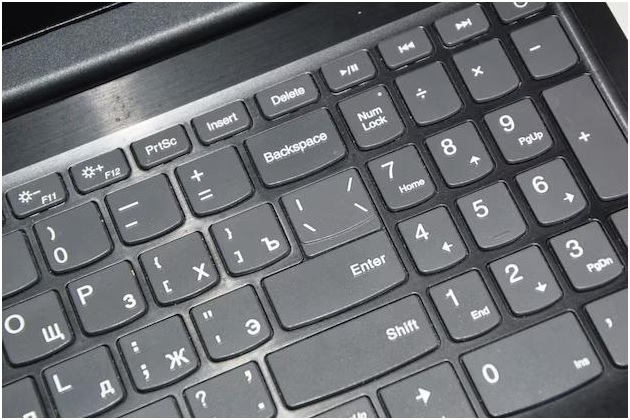
Ever tried typing in Hebrew on an English keyboard? It’s not as simple as you might think. From layout differences to script direction, there are several key distinctions between Hebrew and English keyboards. This guide breaks down everything you need to know about these two layouts. Whether you’re using a HP language keyboard or looking into Hebrew computer language keyboards, understanding the basics can make multilingual typing smoother and more efficient.
Typing in more than one language can be tricky, especially when the keyboards differ in structure and function. If you’re learning Hebrew or working in both English and Hebrew, understanding the differences between the two keyboard layouts is essential. From character placement to direction of typing, each has its own set of features.
Hebrew computer language keyboards Hebrew keyboard layout is designed to support the Hebrew script, which is significantly different from English.
The standard English keyboard uses the Roman alphabet, while Hebrew uses a completely different set of characters.
Hebrew computer language keyboards Hebrew keyboard layout offer a more intuitive way for native speakers or learners to type accurately and comfortably.
You’ll also notice that many modern setups like an HP language keyboard support multiple language inputs, making it easier to switch between English and Hebrew as needed.
Main Differences Between Hebrew and English Keyboards
1. Alphabet and Script
English keyboards use 26 letters from the Latin alphabet. The characters are typed left to right. Hebrew, on the other hand, has 22 letters and no uppercase versions. The text is written from right to left.
This basic structural difference means that the placement of keys on a Hebrew keyboard is completely different from that of an English one.
An HP language keyboard often includes both scripts, which makes it ideal for bilingual users.
2. Key Placement
On an English QWERTY keyboard, common letters like A, S, and D are placed for speed and frequency. Hebrew keyboards are laid out based on common Hebrew letters and their frequency in writing.
This means
- Letters appear in different positions.
- Punctuation keys may also be repositioned.
- Some keys double up with both Hebrew and English characters, especially on dual-language keyboards.
Because of this, switching between languages requires a bit of practice to avoid typing errors.
3. Typing Direction
English is typed from left to right. Hebrew is typed from right to left. This difference affects:
- Cursor movement
- Text alignment
- Interface settings in software programs
When using a Hebrew keyboard, most systems automatically adjust the typing direction. This helps maintain proper formatting when writing in Hebrew documents or emails.
When Should You Use a Hebrew Keyboard?
Using a Hebrew keyboard is beneficial when:
- You regularly communicate in Hebrew
- You’re learning the Hebrew language
- You work in a setting where Hebrew documents are needed
- You’re reading or translating Hebrew texts
If your job involves switching between Hebrew and English, then a bilingual or HP language keyboard can save time and reduce mistakes.
Modern keyboards allow you to toggle between languages with just one shortcut. This is helpful for those writing in mixed formats or responding to messages in two languages.
Features of a Hebrew Keyboard Layout
Here’s what you can typically expect from a Hebrew keyboard:
- Hebrew letters printed clearly on each key
- Standard English letters included for dual use
- Function keys remain the same as English keyboards
- Symbols like @, $, %, and & might require different key combinations
- Right-to-left support in word processors and browsers
Many keyboards come with stickers or overlays to help users learn the layout without changing the device itself.
Hebrew computer language keyboards Hebrew keyboard layout options are also available as digital input methods for mobile and tablet users.
How to Add Hebrew Input on English Keyboards
You don’t need to replace your current keyboard to type in Hebrew. Most systems allow you to add the Hebrew layout in settings.
On Windows:
Go to Settings > Time & Language > Language > Add a language > Select Hebrew.
On macOS:
Open System Settings > Keyboard > Input Sources > Add Hebrew.
You can then switch between languages using shortcuts like Ctrl + Spacebar or clicking on the language icon.
This makes an English keyboard function like a Hebrew one without changing any hardware.
Using Stickers and Keyboard Covers
If you’re not ready to invest in a new device, consider using keyboard stickers or silicone covers. These accessories:
- Add Hebrew letters to your existing keyboard
- They are affordable and easy to apply
- Help you memorise key positions faster
Many users prefer this method when starting out, as it keeps things simple and cost-effective.
For HP users, HP language keyboard stickers designed for Hebrew are widely available and ensure compatibility.
Mobile and Tablet Differences
Typing in Hebrew on smartphones or tablets is also different. Hebrew keyboards on mobile devices often include:
- Swipe input
- Predictive text in Hebrew
- Built-in layout switching
Whether you’re using Android or iOS, switching to Hebrew is as easy as changing the keyboard in your settings. You can then type texts, search, or write emails in Hebrew without extra tools.
Final Thoughts
Switching between English and Hebrew keyboards may seem confusing at first, but with the right tools and understanding, it becomes second nature. The main differences lie in script, layout, and typing direction.